


Use this screen to view the stores set up for a VMP retailer. You can review the results online, or click Report to receive the results via e-mail.
In addition to viewing stores, you can authorize distributors to a store, select the distributor's Cost Zone, and authorize the Brewer/Brands they can sell at the location.
Export Note: Changing a distributor's Cost Zone assignment generates a VMP 879 pricing export. (If the zone is cross referenced, an SSMIA 888 authorization export is also produced.)
Follow these steps:
-- Work with Cost Zone, Brand, and Store Assignments
From the Vendor Managed Pricing tab, under Distributor Setup:
Distributor State - Select the State then select the distributor from the list on the right. Click Expand Criteria for more search options. Store Number - Retailer's store ID. City - Store location. State - Store location. Only states serviced by the retailer appear in the list. Active Stores - Limit search to stores classified as OPEN in Park City Group and having a least one store brand or store brand group assignment. Inactive Stores - Limit search to stores classified as CLOSED and/or not having a store brand or store brand group assignment. Note: All stores are included if Active / Inactive are both checked or both blank.
____________________________________________________________ |
-- |
Use this task to view and authorize distributors that sell to a store. Authorization includes specifying the cost zone and the brewer/brands. No two distributors may sell the same overall Brewer to a single store location. However, different Brands within a Brewer may be split between distributors.
The current assignments display. These include the Distributor, the distributor's Cost Zone assigned to the store, and the Brewers/Brands they are authorized to sell at that location.
To update a distributor's Cost Zone assignment:
Note: The Cost Zone must contain the distributor's pricing for every Brewer/Brand to which they are authorized in the store. Changing the Cost Zone generates a new VMP pricing export. To update a distributor's Brewer/Brand authorizations:
Unassigned Brewers display on the left. Assigned Brewers/Brands display on the right.
Note: Check boxes are grayed out for Brewers and Brands already assigned to a different distributor. To remove a Brewer/Brand, select it from the box on the right and click the left arrow.
To authorize another distributor to the store: Only State Distributors is checked by default, limiting the distributors list to those residing in the same state as the store. Un-check if required (and allowed by law).
Note: The Cost Zone must contain the distributor's pricing for every Brewer/Brand to which they will be authorized in the store.
To add an entire Brewer's product line (Brand = All), check the box to the right of the Brewer and click the right arrow. To add single Brands within a Brewer, click the Brewer, then check the desired Brands. Click the right arrow. Note: Check boxes are grayed out for Brewers and Brands already assigned to a different distributor. If "All" is selected, it will not include single Brands already assigned. ____________________________________________________________ |
This report is sent via e-mail by clicking the Report link. Only the stores that matched your search criteria are included. The e-mail subject line will read: Distributor Store List - Retailer Name.
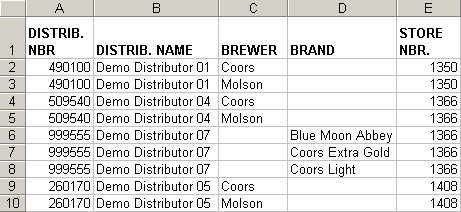
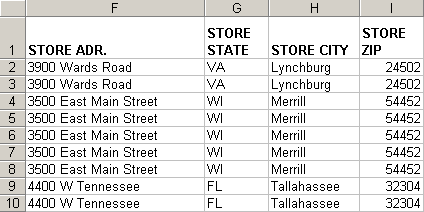
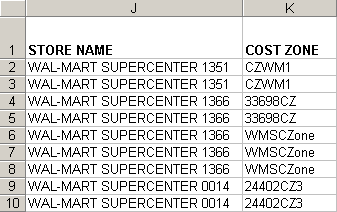
Columns
Col |
Field Name |
Description |
A |
DISTRIB. NBR |
Distributor's ID as assigned by MillerCoors.
|
B |
DISTRIB. NAME |
Distributor's company name.
|
C |
BREWER |
Product line. Populated if distributor is authorized to all the listed brewer's brands within the store. For example, all Coors brands. Exceptions are other distributors authorized to a few select brands in the store. See the "Brand" definition below.
|
D |
BRAND |
Individual brand within a brewer product line. Populated if the distributor is authorized to select brands only. For example, Blue Moon Abbey Ale, Coors Extra Gold, and Coors Light. In these cases, another distributor is usually authorized to sell the remainder of the brewer's product line within the store.
|
E |
STORE NBR. |
Retailer's store number.
|
F |
STORE ADR. |
Store street address.
|
G |
STORE STATE |
State portion of store address.
|
H |
STORE CITY |
City portion of store address.
|
I |
STORE ZIP |
ZIP code portion of store address.
|
J |
STORE NAME |
Retailer's store name.
|
K |
COST ZONE |
Distributor's cost zone in which PTRs (Prices to Retailer) are assigned to the brewers/brands sold in the store.
|
Updated 12/7/2010