


Use this screen to work with the margins and/or markups that determine the Price to Consumer (PTC) at Walmart. These can be set at the state level and overridden by combinations of Category, UPC, and Store.
The PTC is based on the distributor's Price to Retailer (PTR), the amount and type of margin/markup, and any psychological rounding rules applied to the result. Margins and markups differ in how they are calculated, with margins being the most commonly used.
Margins are calculated as Cost/(1-%). For a $10 item with a 15% margin, the PTC is $10/(1-15%) = $10/0.85 = $11.76
Markups are calculated as Cost*(1+%). For a $10 item with a 15% markup, the PTC is $10*(1+15%) = $10*1.15 = $11.50
In general, margins and markups are applied at the State level for item Categories, such as "1200 - Premium Singles." This means that for all UPCs within a category, the margin or markup is the same in all stores throughout the state. However, Park City Group's VMP application allows you to override the margin/markup at a variety of levels.
Setting up Margins/Markups by State and Category
Overriding Category Margins/Markups in select Stores
Overriding UPCs within Categories for select Stores
Overriding UPCs within Categories for the entire State
Overriding UPCs in select Stores
Also see: Store Category Margins/Markups to search for and modify overrides by Distributor and/or Store.
Export Note: Changing a margin or markup automatically generates VMP Maintenance for export.
About the Margin/Markup window
The basic tools and layout on the State Category Margin/Markup screen are as follows. This screen is the entry point for all changes.
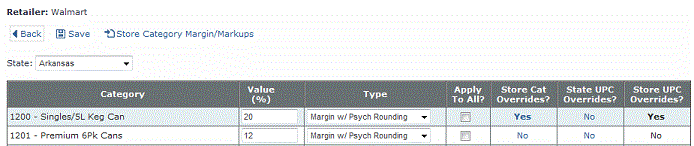
Save. Apply any changes made. This automatically generates VMP Maintenance for export.
Store Category Margin/Markups. Search for and modify overrides by Distributor and/or by Store.
State. Because pricing regulations vary for alcoholic beverages vary by state, markups/margin settings are first performed at the state level.
Category. UPC grouping, by type of item.
Value (%). The amount of margin or markup, as a percentage.
Type. Margin or Markup, with or without Walmart psychological rounding.
Apply to All? Replace any overrides (described below) in place with the value and type entered. An override is a unique margin/markup applied at various levels, providing values different from the State category.
If Apply to All is NOT selected, changes are applied only to the margins/markups for stores within the category that matched the original value.
If Apply to All is selected WITHOUT changing the value, all overrides are changed to match the current state/category value. This is an easy method for resetting the overrides.
Store Cat Overrides? Whether margin/markups for the category are different in individual stores.
State UPC Overrides? Whether margin/markups are present statewide for select UPCs within the category.
Store UPC Overrides? Whether margin/markups are present in certain stores for select UPCs within the category.
Setting up Margins/Markups by State and Category
Work with margin/markups statewide by category.
|
From the Vendor Managed Pricing tab, under Administration:
For example, enter 6% as 6 or 6.25% as 6.25. Up to two decimal places can be entered.
See the About the Margin/Markup window for more information.
____________________________________________________________ |
Overriding Category Margins/Markups in select Stores
Override category margin/markups for individual stores. Note: To clear an override, erase the Value and set the Type to Not Selected. Do NOT enter zero in the Value field.
|
From the Vendor Managed Pricing tab, under Administration:
For example, enter 6% as 6 or 6.25% as 6.25. Up to two decimal places can be entered.
____________________________________________________________ |
Overriding UPCs within Categories for select Stores
Override margin/markups for individual UPCs within selected stores. Note: To clear an override, erase the Value and set the Type to Not Selected. Do NOT enter zero in the Value field.
|
From the Vendor Managed Pricing tab, under Administration:
For example, enter 6% as 6 or 6.25% as 6.25. Up to two decimal places can be entered.
____________________________________________________________ |
Overriding UPCs within Categories for the entire State
Override category margin/markups statewide for select UPCs. Note: To clear an override, erase the Value and set the Type to Not Selected. Do NOT enter zero in the Value field.
|
From the Vendor Managed Pricing tab, under Administration:
For example, enter 6% as 6 or 6.25% as 6.25. Up to two decimal places can be entered.
If Apply to All? is checked, the UPC is applied to all stores within the state. If Apply to All? is NOT checked, the UPC override is applied to stores where an UPC override does not exist.
____________________________________________________________ |
Overriding UPCs in select Stores
Override category margin/markups for individual UPCs in select stores. Note: To clear an override, erase the Value and set the Type to Not Selected. Do NOT enter zero in the Value field.
|
From the Vendor Managed Pricing tab, under Administration:
For example, enter 6% as 6 or 6.25% as 6.25. Up to two decimal places can be entered.
____________________________________________________________ |
Store Category Margins/Markups
Use this option to search for and modify overrides by Distributor and/or by Store. Note: To clear an override, erase the Value and set the Type to Not Selected. Do NOT enter zero in the Value field.
|
From the Vendor Managed Pricing tab, under Administration:
For example, enter 6% as 6 or 6.25% as 6.25. Up to two decimal places can be entered. Note that the State Category Level is displayed to the right as a guide.
Note: If desired, click Store UPC Overrides? to adjust individual UPCs within the store. A "Yes" means an override is currently in place.
____________________________________________________________ |
Updated 12/7/2010